Getting started: your first hour with ClientKeeps
A step-by-step guide to setting up your agency's workspace, adding your first client and login, and inviting your team, all in about an hour.
ClientKeeps team · · 2 min read
You've signed up. Now what? This guide takes you from an empty workspace to a team sharing client logins safely. Most agencies finish it in under an hour.
1. Create your workspace
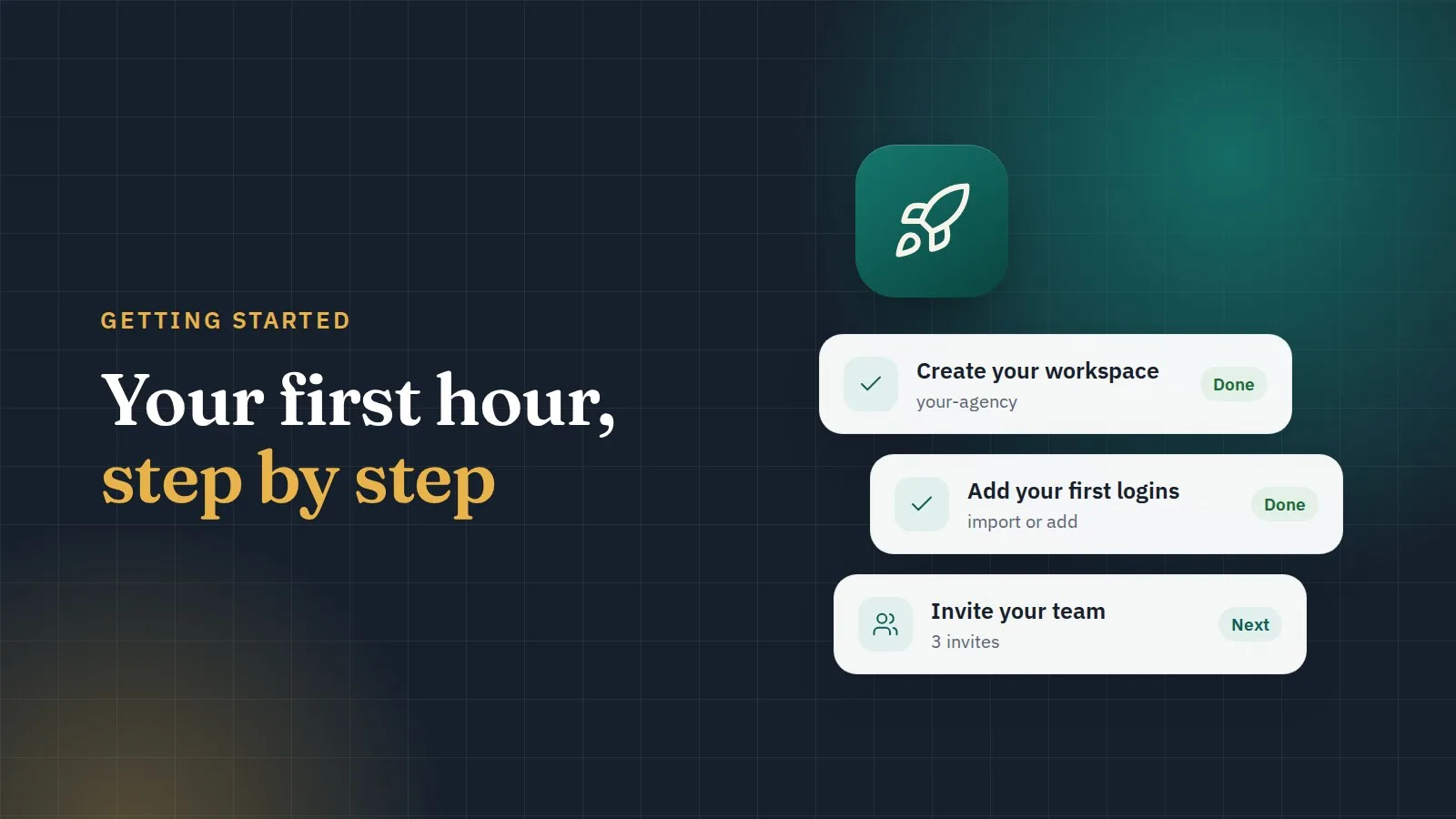
Pick your agency's name and an address, like your-agency. That address is where your team signs in. Then confirm your email.
The setup wizard asks for three things:
- A master password. It never leaves your browser and we can't reset it, so pick a long one you'll remember. A short sentence works well.
- Two-factor sign-in. Use an authenticator app or a passkey. Everyone in your workspace has it; it isn't optional.
- Your recovery sheet. Print it or save it somewhere offline. It's the one way back in if the Owner's master password is ever lost. Use Test my recovery sheet in Settings now and then to check you still have it.
2. Add your first client
Open Clients and add one you work with every week. Add their website too: its address, and if you like, when the domain renews. ClientKeeps reminds you 30 and 7 days before.
3. Add a login
On the client's page, choose Add login. One login can hold several sections, so a website's login can carry the WordPress admin, the hosting panel and the FTP account together. Fill in what you have; optional fields are under More options.
Already have a spreadsheet or another password manager? Skip ahead and import instead: CSV, Bitwarden, 1Password and LastPass exports are read in your browser, and clients and websites are matched for you.
4. Ask the client for what's missing
Missing the hosting login? Send a client request. Your client gets a secure link, fills in each login at their own pace, and everything is encrypted in their browser for your team only.
5. Invite your team
Open Team & access and invite people by email. Give each person a role, and only the clients they work on. When they join, an admin compares a short security code with them before they get access, so nobody can slip a fake key in between.
6. Look at the dashboard
The dashboard has a first-run checklist and shows what needs attention: weak or reused passwords, logins due for a change, and requests waiting for you.
That's it
From here, the best habit is simple: every new login goes into ClientKeeps, never into a chat or an email. Your future self, and your clients, will thank you.