Moving to ClientKeeps from Bitwarden, 1Password or LastPass
Switching password managers sounds like a weekend job. With an export and the import page, it takes minutes, and your logins arrive sorted by client.
ClientKeeps team · · 2 min read
Already using a password manager, or a spreadsheet? You don't have to retype anything. Here's how to move in.
1. Export from your current tool
- Bitwarden: Tools → Export vault, as CSV.
- 1Password: File → Export, as CSV.
- LastPass: Advanced options → Export, as CSV.
- A spreadsheet: save it as CSV. Columns like name, website, username, password and notes work best.
Keep the export file somewhere temporary, because it isn't encrypted. Delete it when you're done.
2. Open the import page
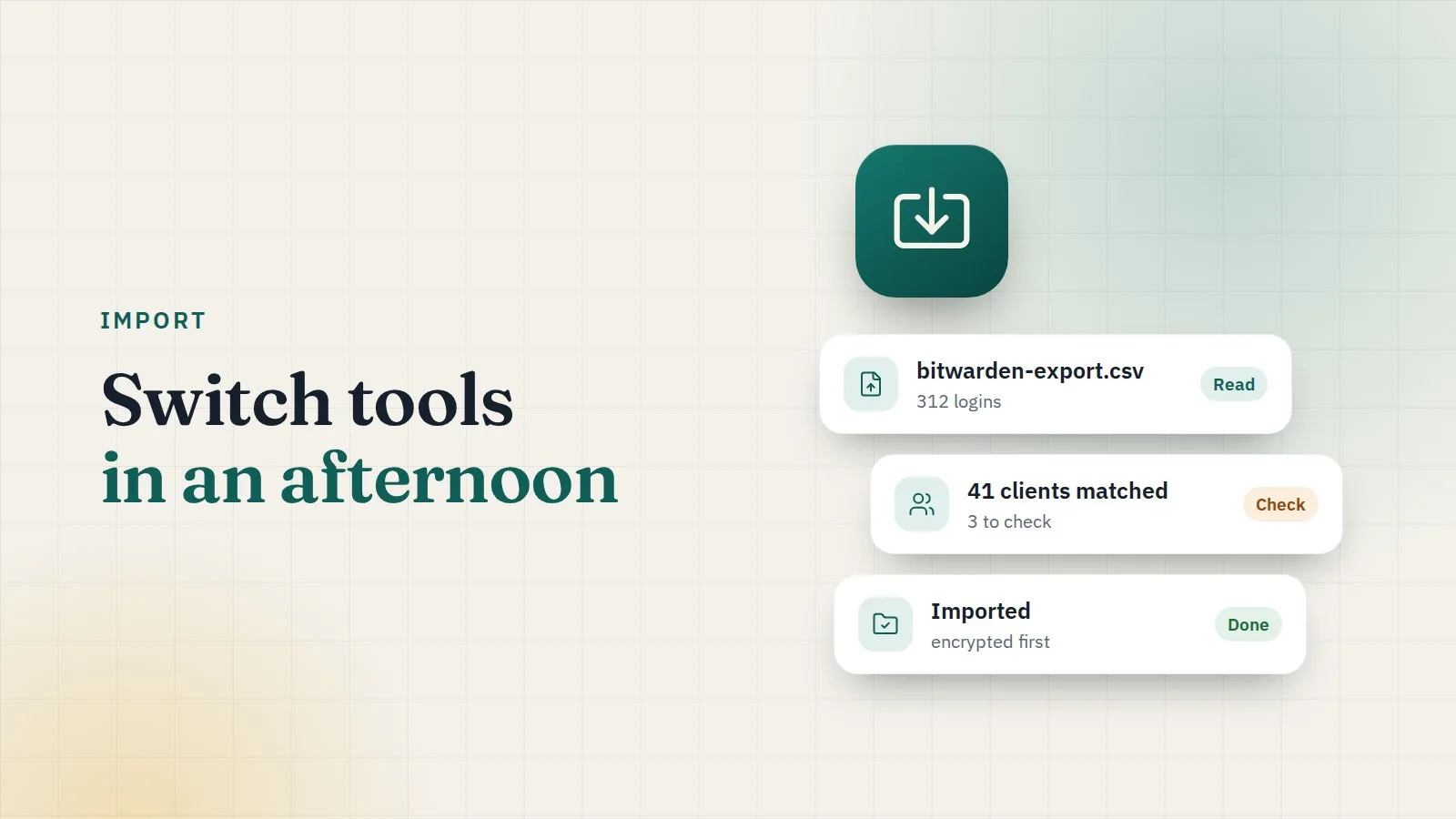
In ClientKeeps, open Import and choose your file. The file is read in your browser. Nothing is uploaded until each login has been encrypted on your computer.
3. Pick the login type
Tell ClientKeeps what most of the rows are: WordPress admin, hosting, domain and so on. You can change single rows later.
4. Check the matching
This is where the time is saved. ClientKeeps looks at each row and:
- finds the client, by email first, then by name, or offers to add a new one;
- finds the website by its address, or adds it;
- finds the reseller by name, if you use them.
Rows it isn't sure about are marked Check. Decide those before importing, so nothing ends up in the wrong place.
5. Import
Choose Import. Each login is encrypted in your browser and saved under the right client and website. Then open a few clients and have a look.
6. Tidy up
- Delete the export file, and empty the bin.
- Look at the dashboard: imported passwords are checked for weakness, reuse and breaches, so you'll see which ones to change first.
- Invite your team and give each person their clients.
Common questions
What about folders? Bitwarden and LastPass folders are read as the client's name, so a folder per client imports neatly.
Two-factor codes? If your export includes them, they come across with the login; otherwise add the setup key later.
Attachments? Exports usually don't include them. Add important files, like SSL certificates, by hand.
Most agencies are fully moved in within an afternoon. Then switch off the old tool, and enjoy having everything in one place.