Moving your client passwords out of a spreadsheet
Most agencies start with a spreadsheet. Here's how to move it into ClientKeeps in an afternoon, without losing anything, and then delete it for good.
ClientKeeps team · · 1 min read
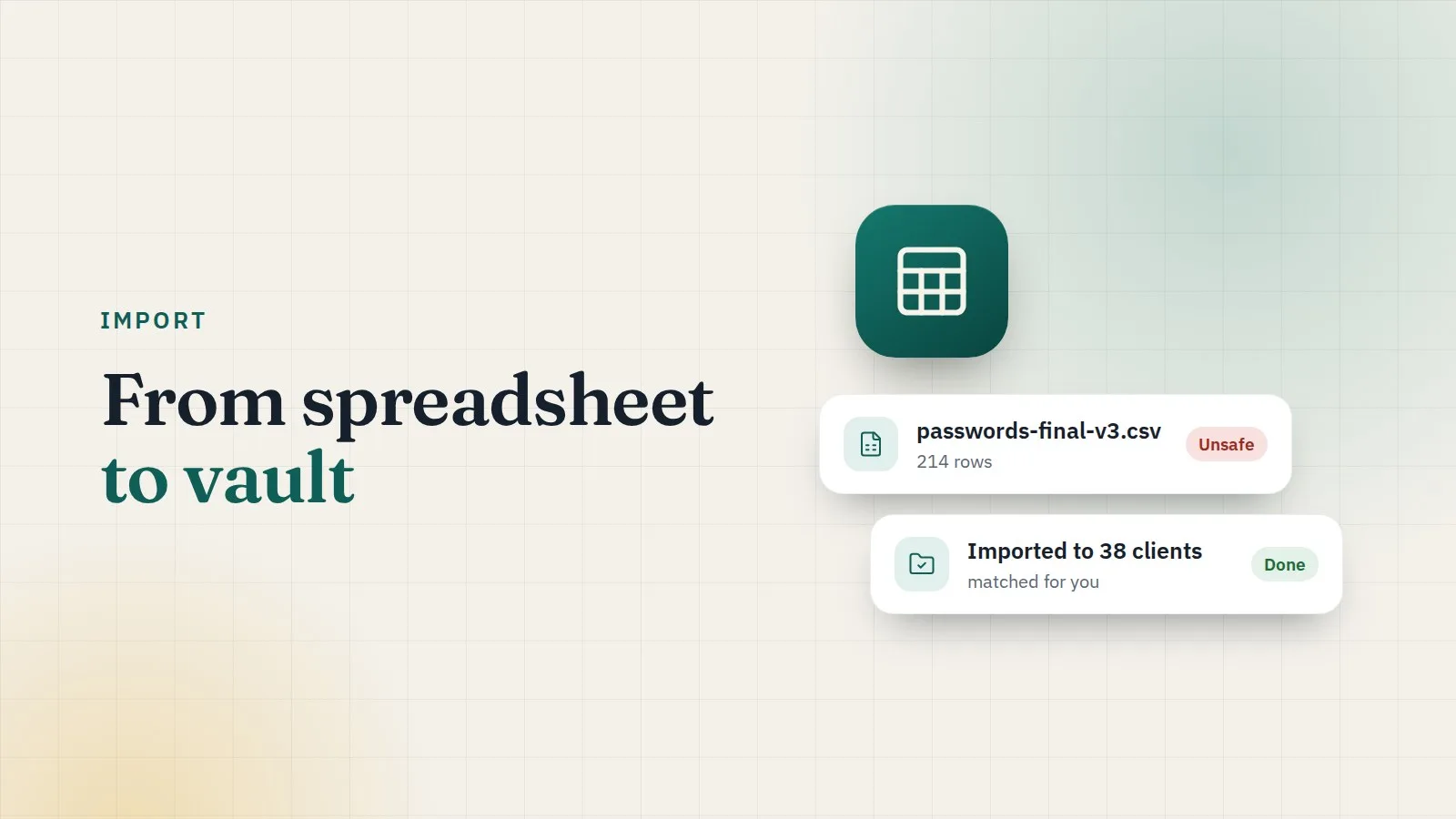
Almost every agency starts with "the spreadsheet": one tab per client, columns for site, username and password, and colour codes only one person understands. It works, until it's shared with the wrong person, or someone downloads a copy.
Moving it into ClientKeeps takes an afternoon.
1. Tidy the spreadsheet first
Ten minutes here saves an hour later.
- One row per login.
- Columns for client, website address, login type (hosting, domain, WordPress…), username, password and any notes.
- Delete rows for accounts that no longer exist.
2. Export as CSV and import
Save the sheet as CSV, then in ClientKeeps go to Import → CSV.
- Match your columns to ClientKeeps's fields.
- Pick the login type for the file, or take it from a column.
- Clients are found by email, then by name, and added if they're new. Websites are matched by address.
- Rows ClientKeeps isn't sure about are marked Check, so you decide before anything is saved.
The file is read in your browser. Passwords are encrypted there before anything is sent to us.
3. Spot-check a few logins
Open three or four imported logins and compare them with the sheet. Check that each landed on the right client and website.
4. Delete the spreadsheet everywhere
This is the step people forget, and it's the one that matters.
- Delete the file from your computer, cloud drive and email attachments.
- Empty the trash.
- Ask the team to delete any downloaded copies.
5. Look at the health report
After the import, the dashboard shows:
- weak passwords;
- passwords used on more than one site;
- passwords found in known data breaches;
- passwords that haven't been changed in a long time.
Fix the most important ones first: domains, DNS and hosting.
Need help with a large or messy file? Contact us and we'll help you plan it.