How to share a login with a freelancer, safely
Your freelancer needs FTP access for a week. Here are three safe ways to share it in ClientKeeps, and when to use each.
ClientKeeps team · · 1 min read
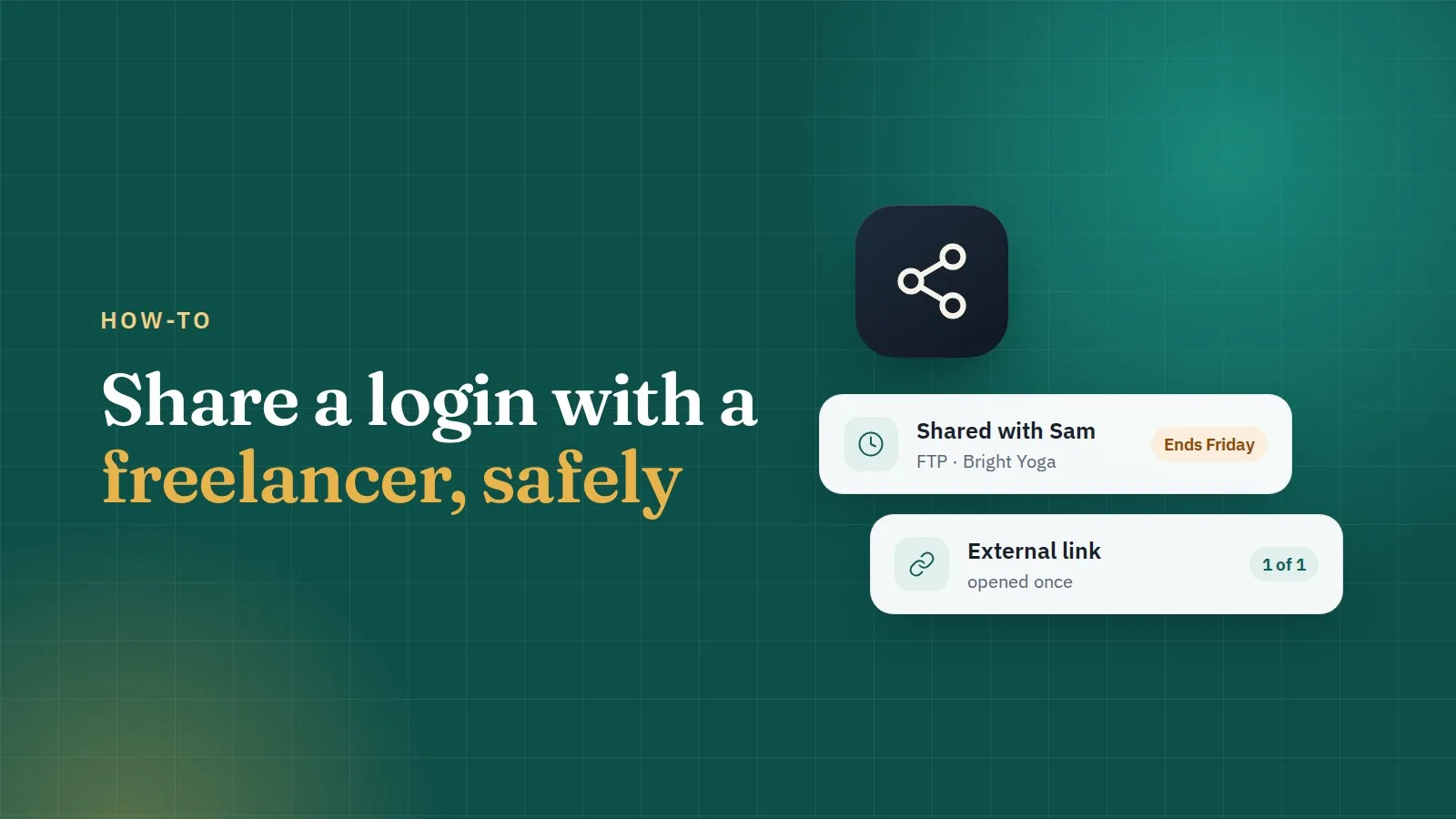
A freelancer is helping with a client's website this week. They need the FTP login and maybe the WordPress admin. Pasting the password into a chat is quick, but that message lives forever.
ClientKeeps gives you three better options.
1. Add them to your workspace, for a limited time
Best when they'll work with you regularly.
- Invite them from Team & access. Copy details gives you a ready-made message with their sign-in address.
- Give them access to just that client, or just those logins.
- Set an end date. Their access stops by itself, and you get a reminder before it does.
They get their own master password, two-step sign-in and audit trail, just like your team.
2. Share one login with a person
Best for a single login, with someone already in your workspace.
- Open the login, choose Share, pick the person and how long.
- Their copy is encrypted for them alone.
- Ending the share is one click, and the dashboard reminds you to change the password afterwards if you like.
3. Send a temporary link
Best for someone outside your workspace who needs to see a login once.
- Open the login and create an external link. Choose how long it works and how many times it can be opened.
- Add a passphrase and tell it to them by phone.
- The link's key stays in the part after the
#, which never reaches our servers. When it expires, it opens nothing.
You're told when the link is opened.
Which one should I use?
- Works with you every month: add them to your workspace, for a limited time.
- Needs one login for a few days: share it with them.
- Needs to see it once, without an account: send a temporary link.
Whatever you choose, change the password when the work is done if it was sensitive. ClientKeeps helps you remember.